
Getting Started With SERPView
SERPView is a comprehensive tool that overcomes Google Search Console’s 1000-row viewing limit, allowing users to analyze thousands of rows of keywords and queries in a single place without any manual export. It improves the quality of analysis by combining GSC, Bing Webmaster Tools, and Google Analytics into a unified dashboard. Moreover, you can analyze multiple sites in a single dashboard by selecting the respective Properties (sites) linked to your Google account.
How To Get Started With SERPView?
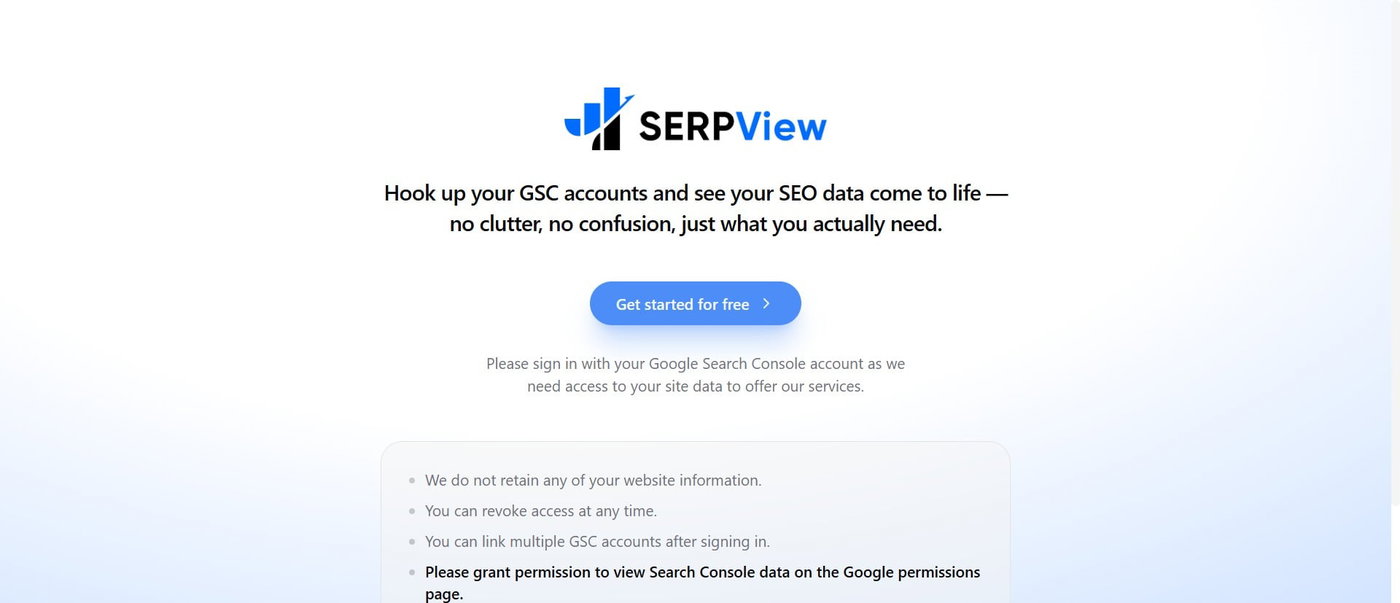
Visit serpview.com and click the Get Started for Free button.
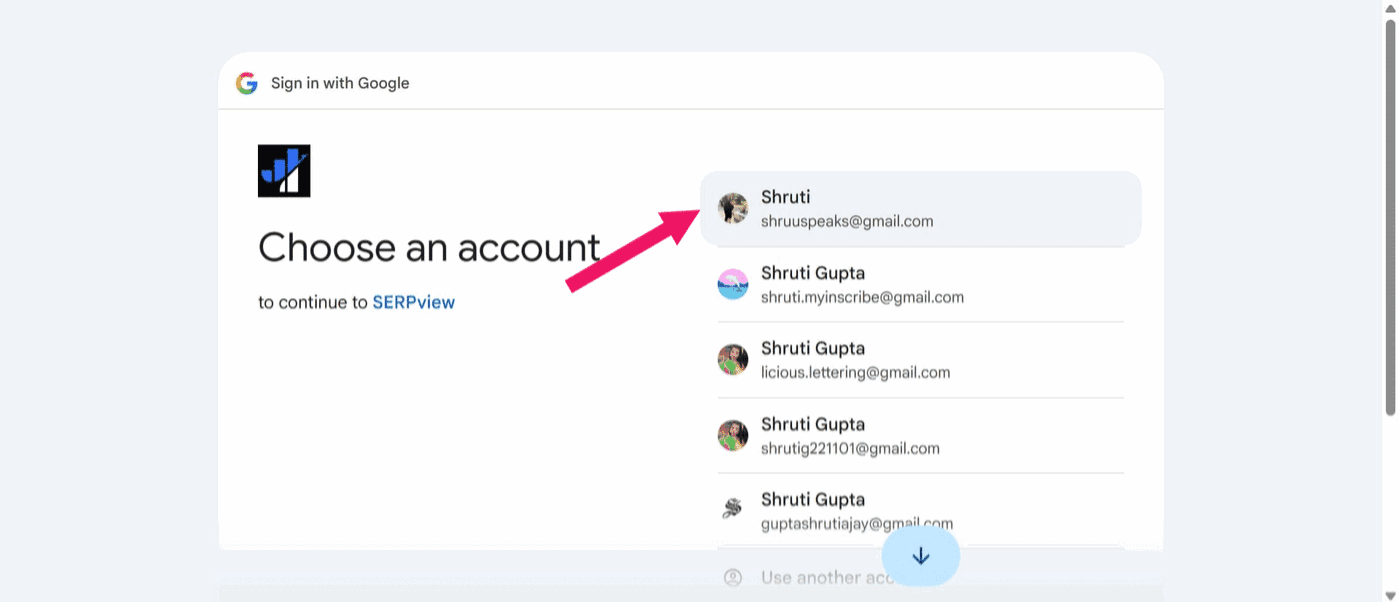
Choose the Google account linked to your GSC account.
You will be redirected to the Dashboard.
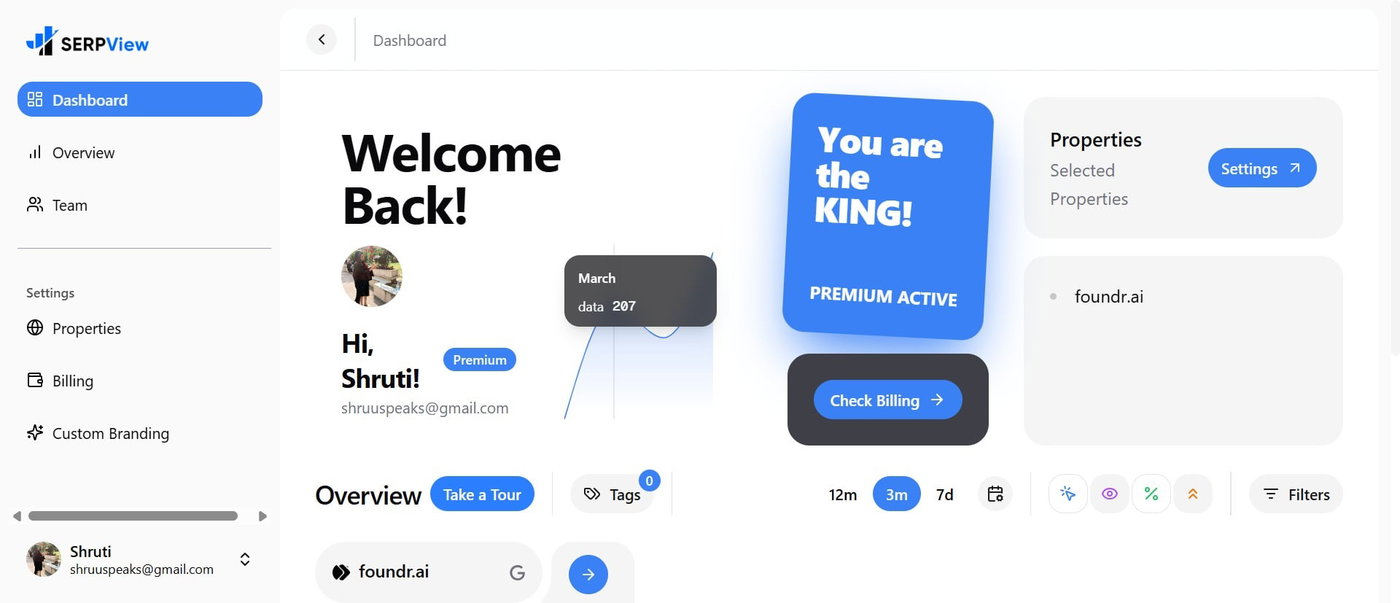
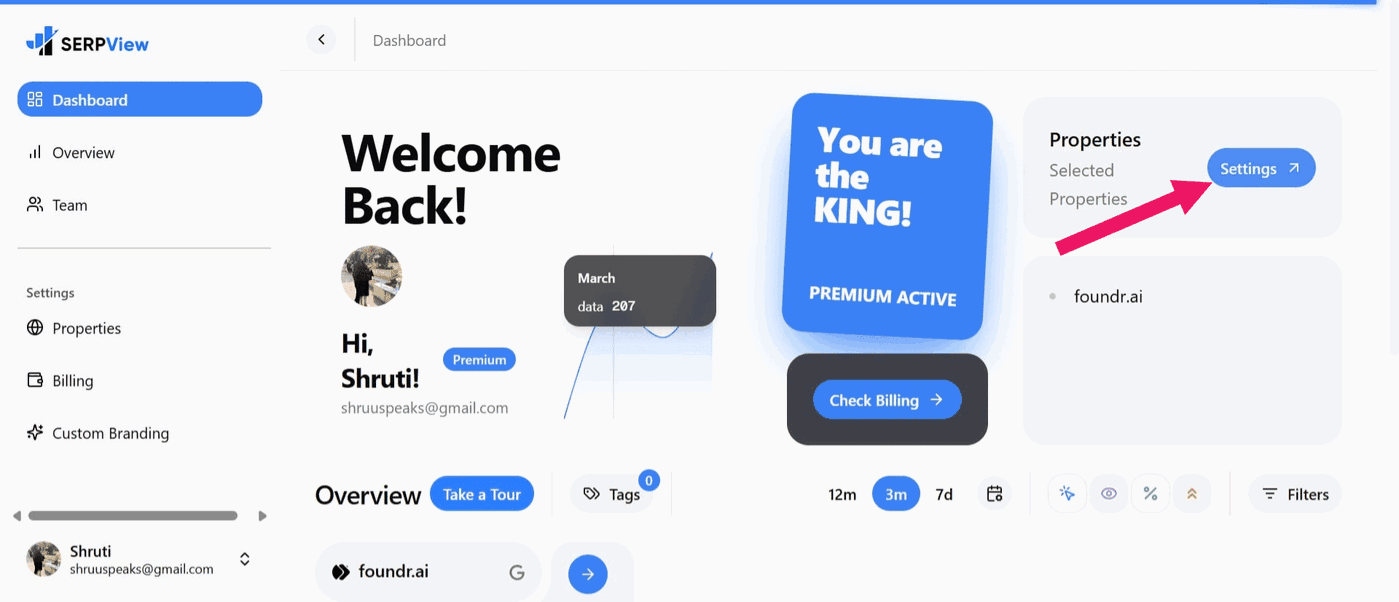
Scroll down, click the property name, and you will see the Dashboard overview, which will show all your connected properties.
To modify the selection for your Google Properties,
Choose Settings next to Properties.
Click Select Properties, choose the websites you want to analyze, and save the selection.
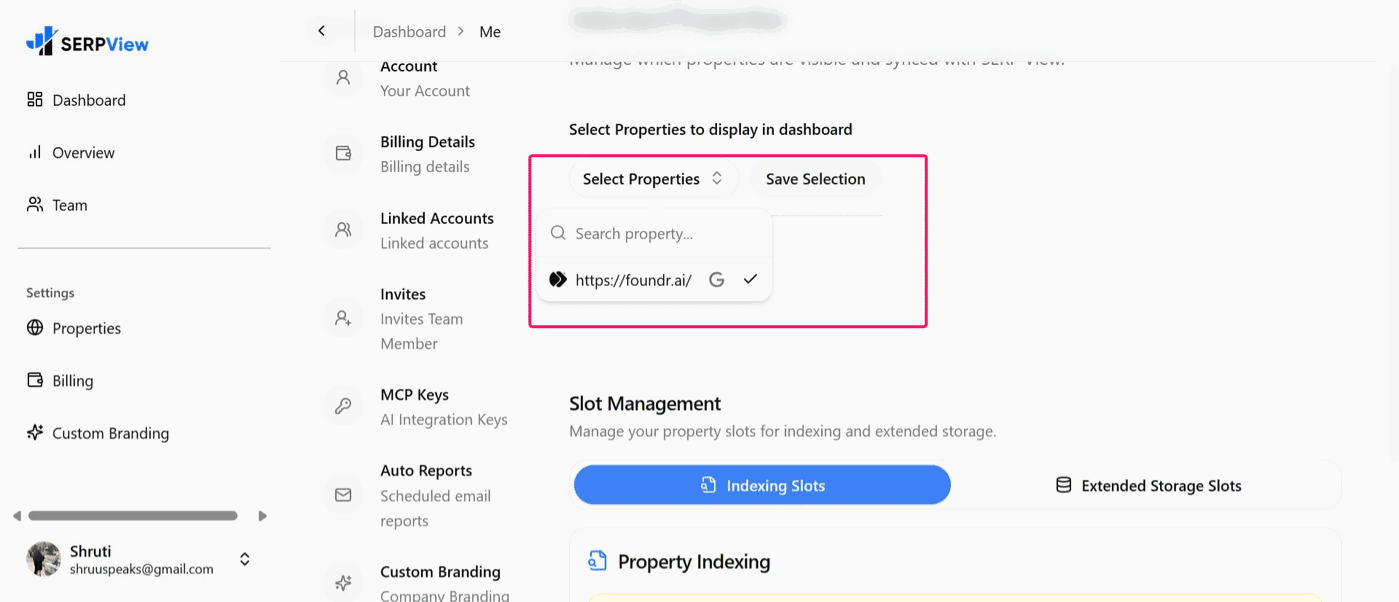
Thus, the dashboard displays:
Your GSC-connected properties
Historical site performance data of 16 months
Filtering options for branded and non-branded keywords
Search bar and filter by time and other options
Filtering Options
SERPView lets you filter the data as per:
Query
Page
Country
Device
People Also Ask
Long Tail Keywords
Further, you can filter queries as branded and non-branded. Besides, it offers branded and non-branded keyword tracking.
Alternatively, you can also set the Data Source to Bing from the bottom-most left pane of filtering options. If you have a news site or want to check analytics for Discover and News, you can do so as well. The Image, Video, and Google News search options are also available for those who focus on that kind of SEO.
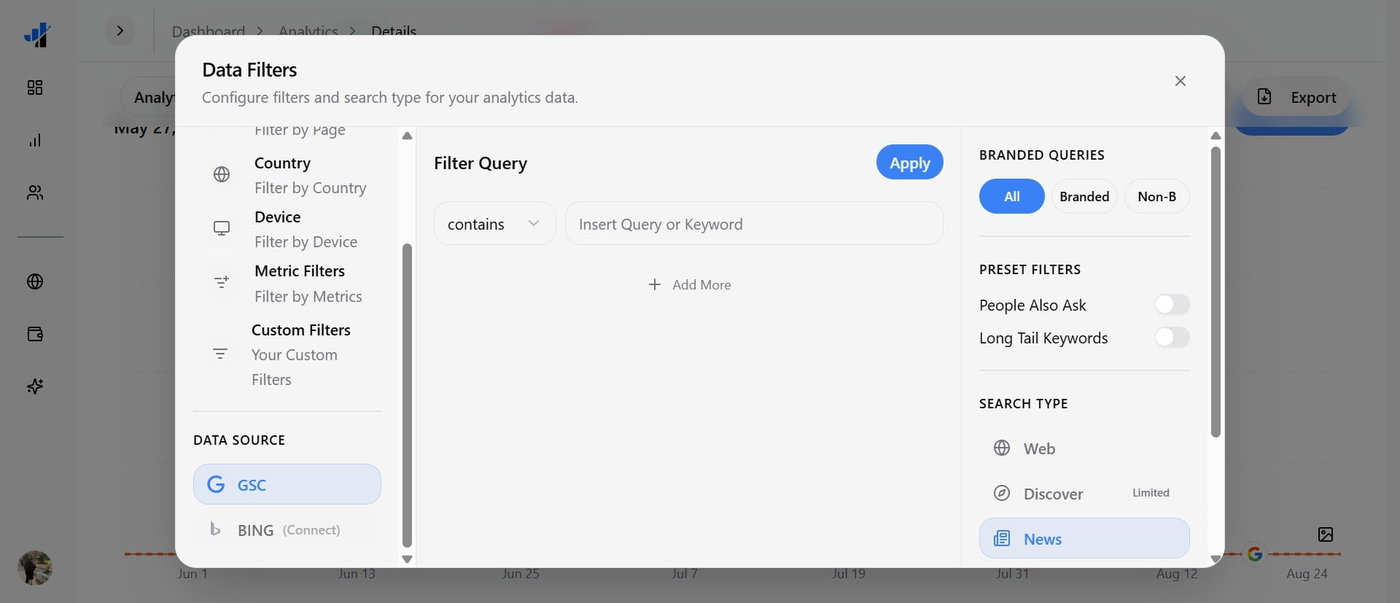
There are also options available for Date Filters, CTRs, Impressions, etc.