
How To Use Content Groups For Smarter SEO Analytics?
Content groups related pages enable you to analyze the performance and analytics of multiple pages effectively. For example, you can group all the pages, blog posts, news pages, pSEO pages, product or tool pages. This way, you don’t have to analyze the performance of individual pages and can see the overview of how each group is doing. Unlike GSC or Bing Webmaster, you can save all your content groups in SERPView and use Operators and Expressions properly. This tutorial will guide about how to setup and use content groups in SERPView.
How To Setup Content Groups in SERPView?
It is easy to set up content groups in SERPView using the exact URL or by grouping similar pages with operators. Here's how you can do it:
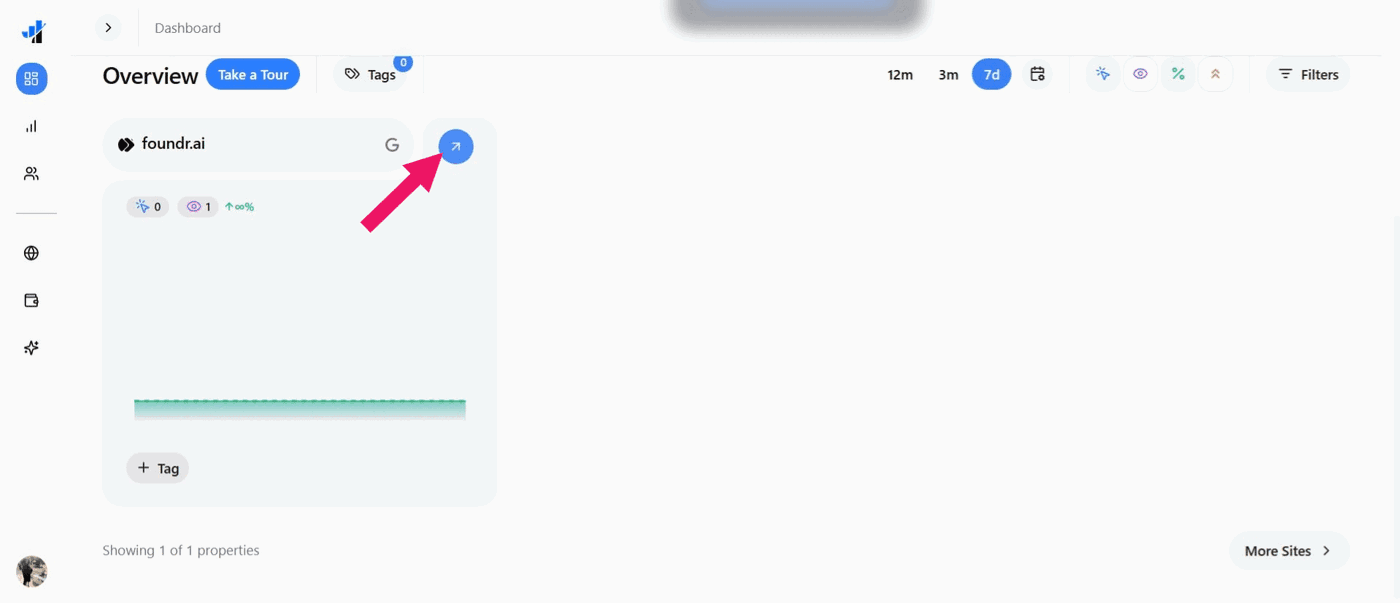
Go to the SERPView Dashboard and ensure you have selected the property for which you want to setup content groups.
Click the right-pointing arrow in the analytics minimized view.
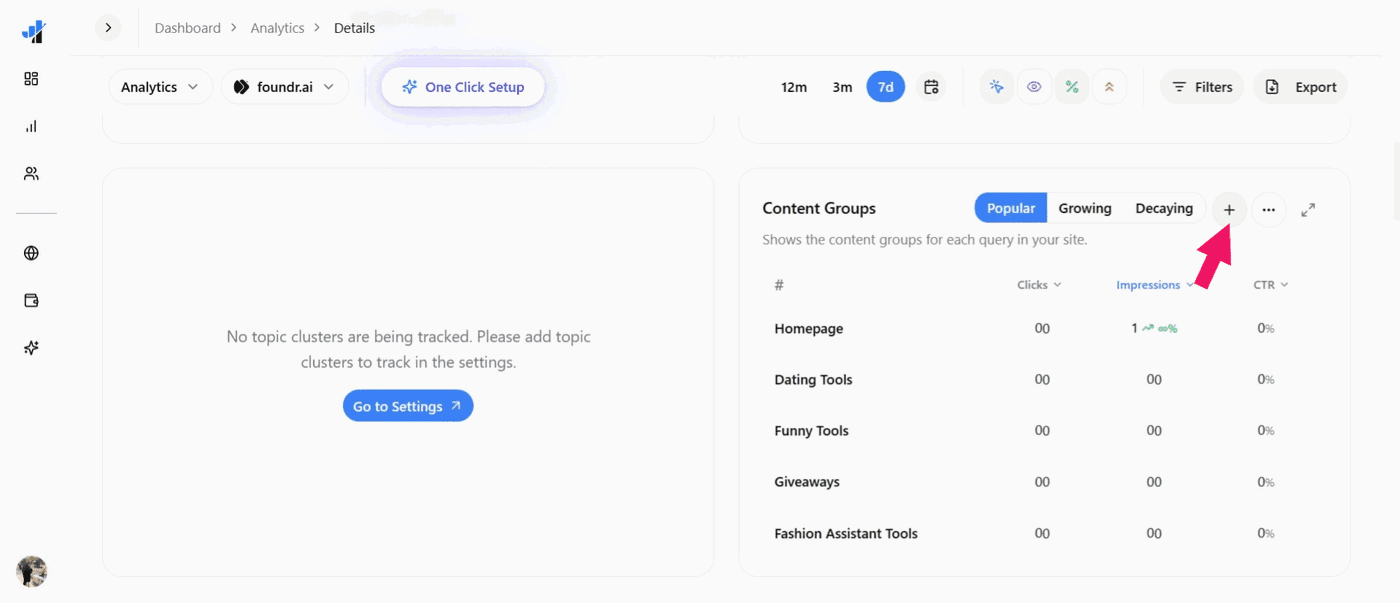
Scroll down to Content Groups and click the plus-shaped icon next to Popular, Growing, and Decaying.
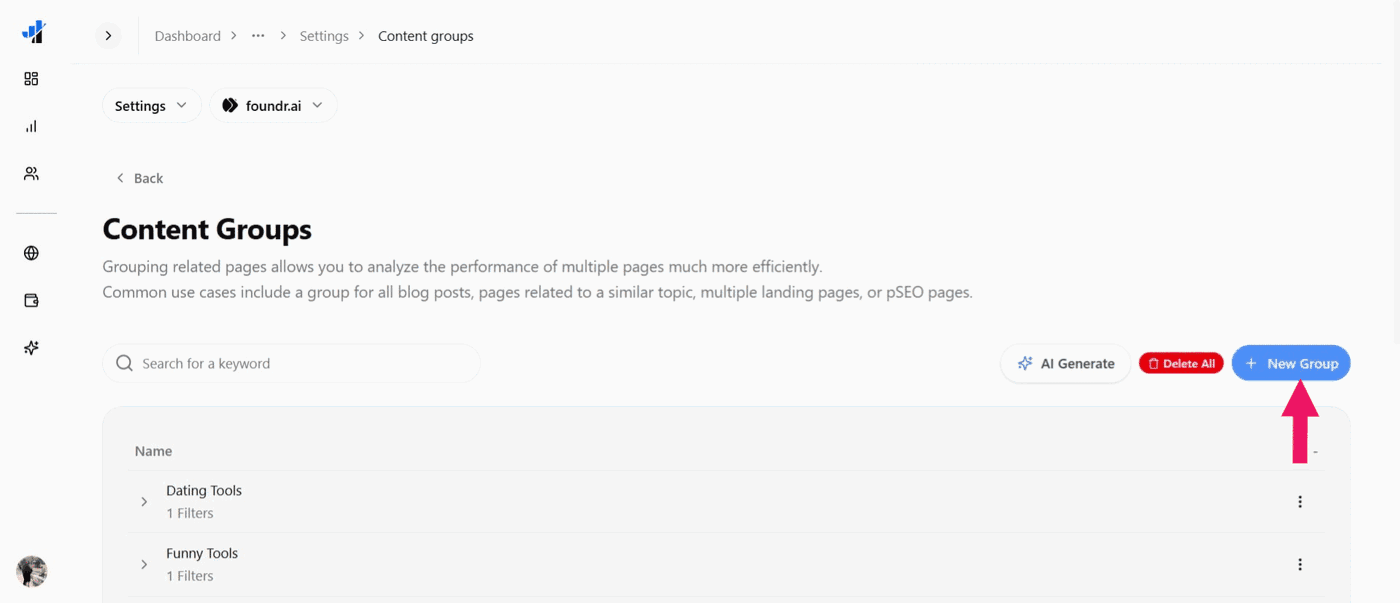
The Content Groups page opens, and click the New Group button
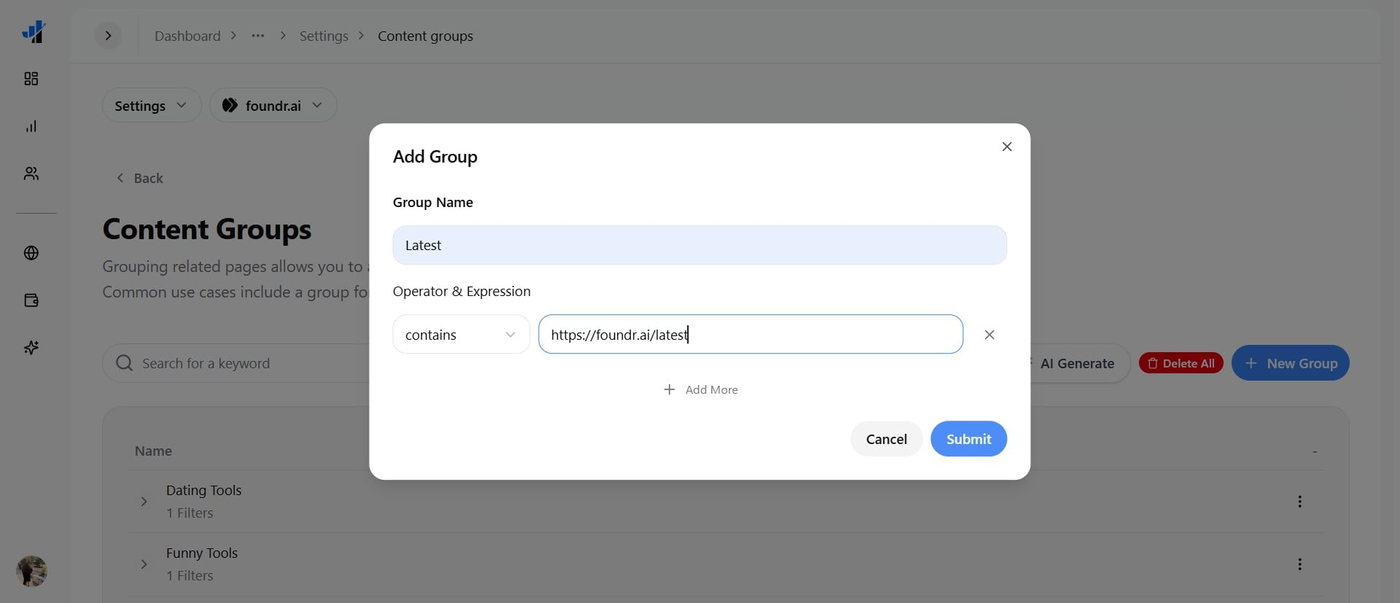
Enter the group name you want to give and the URL for that page as Expression (here we have selected contains as the operator)
You can add more webpages to the URL for the content that you want to group, and click Submit
Now, go back to the Content Groups charts, click the Maximize button next to the three-dot icon, and you will see the groups you have set. You can also generate Content Groups using the AI Generate button.
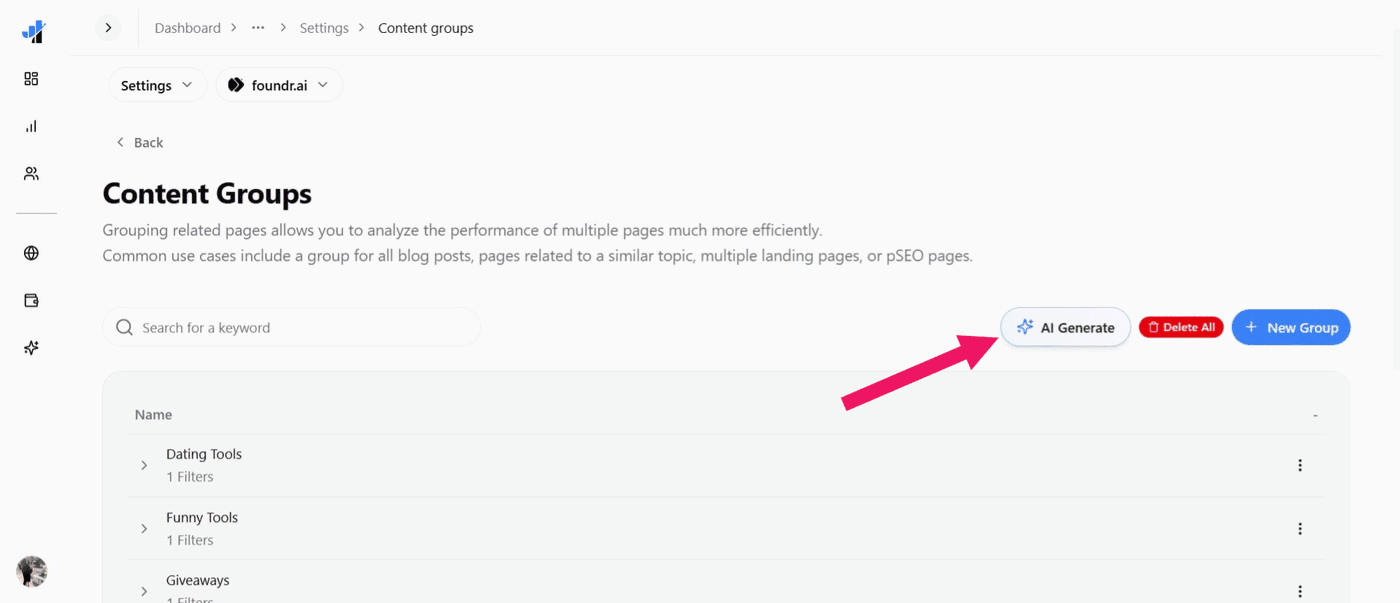
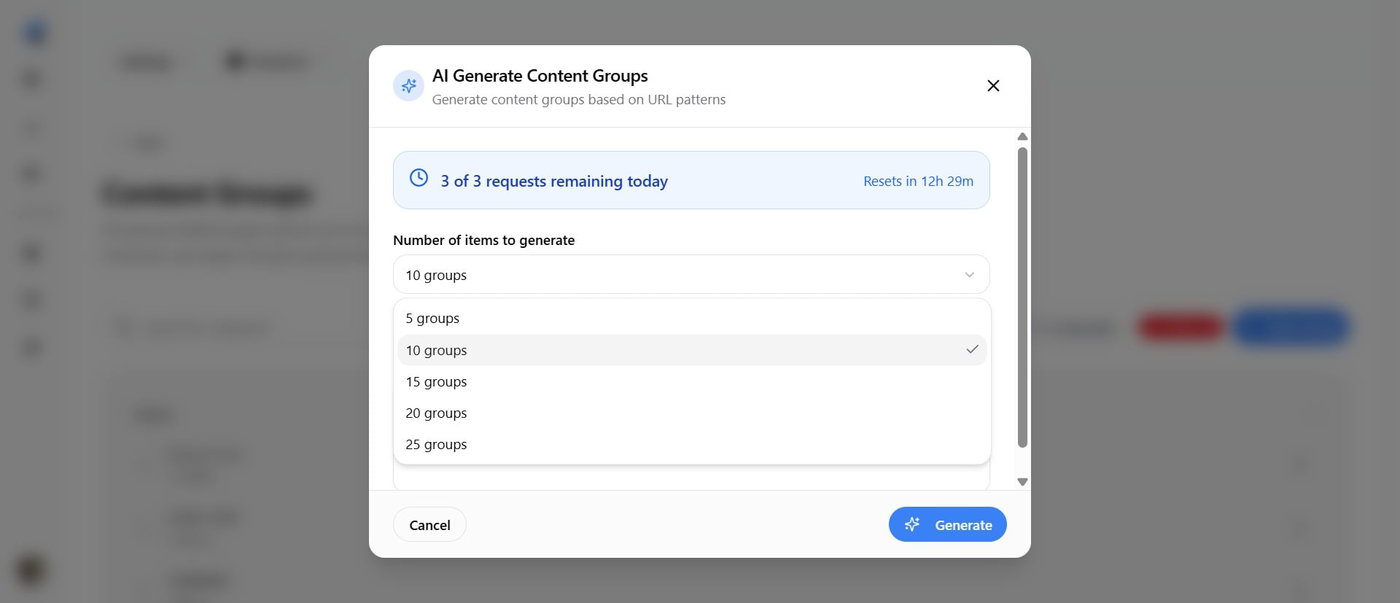
Choose the number of groups you want to generate, and provide any custom instructions as needed.
The following are some examples of content group operators that you can use:
contains: When you enter a particular website, URL, or keyword, it pulls all the URLS containing that term. For example, if you enter loremipsum.com, it will fetch all the URLS containing it, like https://loremipsum.com/abc, https://loremipsum.com/page, etc.
equals: It pulls exactly the URL that you enter. For example, if you input https://foundr.ai/blog, it will fetch only that exact URL.
matches Regex: URL matches the regular expression pattern you enter. For example, loremipsum\.com/.* will fetch all the URLs matching that pattern.
matches any (batch): Here, it pulls those URLs from any of the multiple expressions that you input.
doesn't contain: It will not contain the URLs that match your entered text. For example, if you enter reddit.com, it will return all URLs except Reddit URLs.
doesn't equal: In this case, it fetches all URLs except the exact term or URL you mentioned. For example, https://loremipsum.com/ fetches everything except the exact URL.
doesn't match regex: Here, the doesn’t match regex will be applied to URLs that don’t match the specified URL's regex pattern. For example, in the case of reddit\.com, it will pull URLs that don’t match this pattern.
doesn't match any (batch): In this case, it will pull those URLs that don’t match any of the entered expressions. For example, if you provide reddit.com and quora.com, it will pull URLs that don’t match either of those domains.
How Content Groups Help With pSEO?
Content groups are beneficial for sites that do programmatic SEO (pSEO). These pages are generated by a program, such as for a blog post, tool page, etc., and share a common structure.
Let’s take the example of foundr.ai using pSEO. They might have many blog pages beginning with https://foundr.ai/blog/. All its blog pages share a common URL prefix, such as /blog. So instead of analyzing all the blog pages separately, you can use content groups to analyze all the pSEO pages at once.
How To Use Content Groups For SERPView?
After setting content groups in SERPView, navigate to analytics in Dashboard and check the Content Groups section. You can also check each content group to analyze how each of them is performing, the keywords for which they rank, and more.
View each content group to analyze and filter the Dashboard to include only data related to pages in that group.
Now, you will see Clicks, Impressions, and CTR, and you can sort by them for all the content groups you set. You can also filter it among Popular, Growing, and Decaying groups.
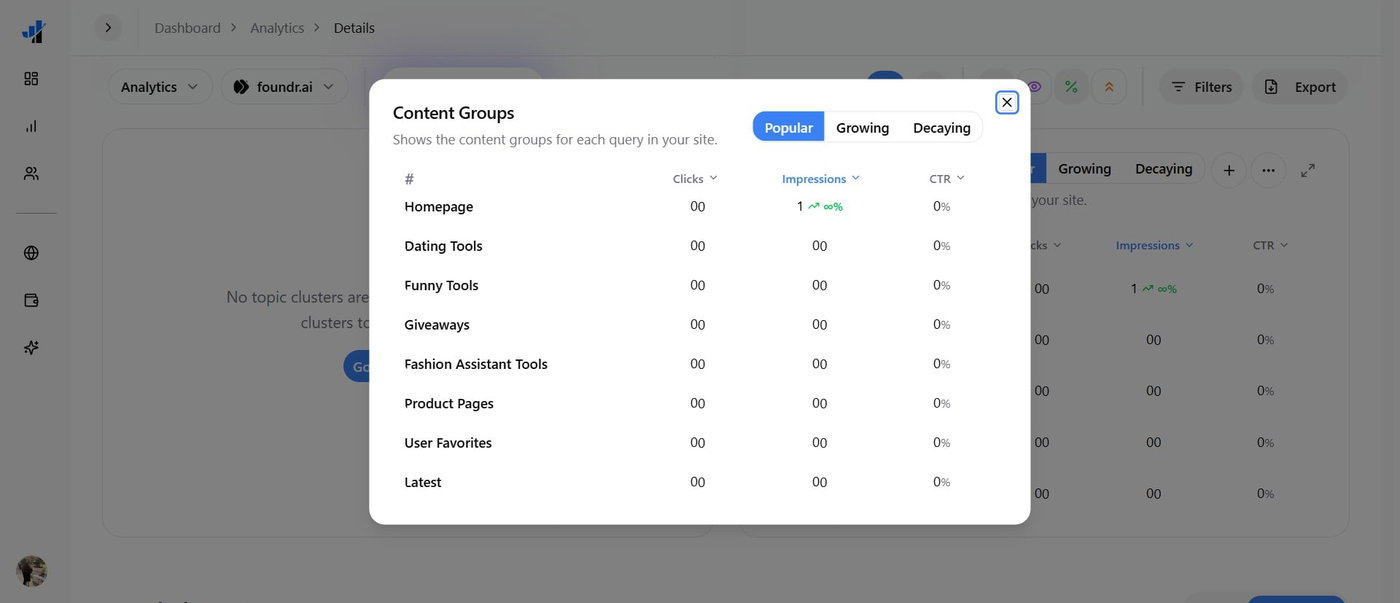
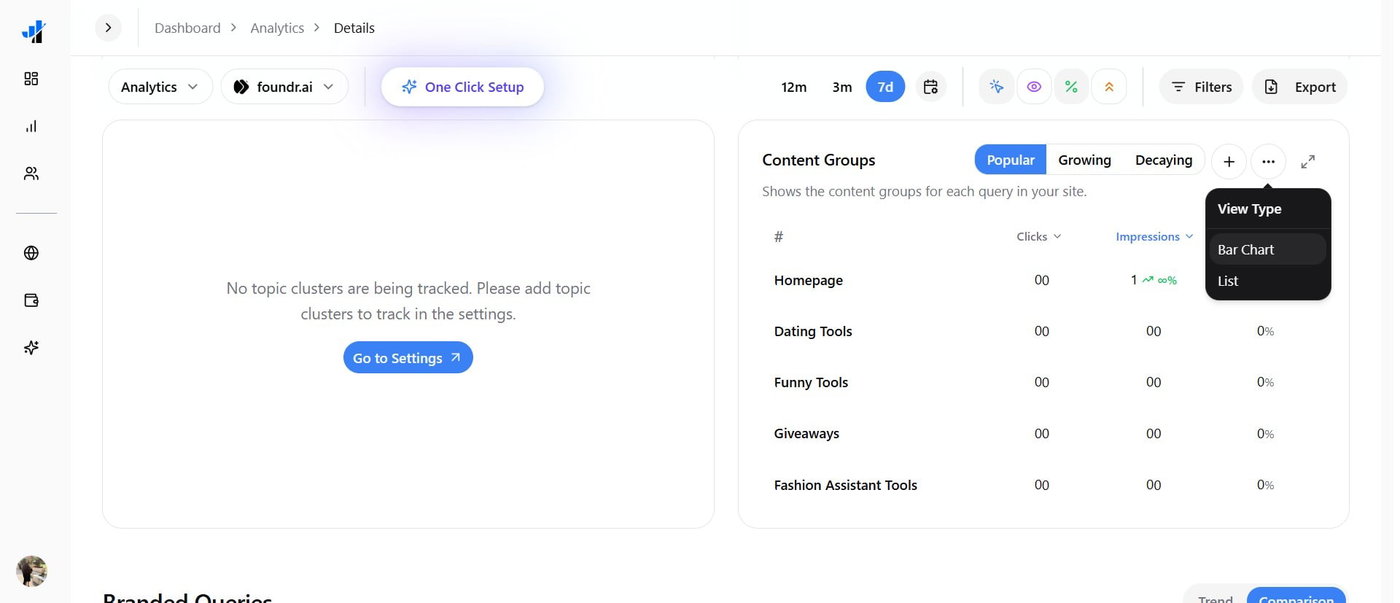
Switch between Bar Chart and List View Type as per your analysis preferences. You can edit and delete the content groups as needed.
To efficiently check your site analytics, use the SERPView tool now!