
How to Combine Multiple Search Console properties Data?
Combined metrics let you avoid repeatedly switching accounts and sites in GSC when analyzing multiple sites at once. You can view aggregated data across multiple sites under a common category. This is an asset, as it gives you comprehensive insights without much time spent, helping you improve your blogging portfolio. A comprehensive performance chart helps you stay aligned with the modern approach to “smart work” to achieve optimal results.
Why is the Combined Metrics Feature Useful?
There are many reasons to analyze the performance of your projects simultaneously. Some of them are listed below:
Easy classification: With tags, you can list a group of sites into a single category. For example, adding tags like blog, ecommerce, SaaS, Fintech, DIY, tools, troubleshooting, or similar ones, based on your needs, helps you segment them effectively.
Better Analysis and Optimization: To use combined portfolio metrics, you need to group multiple similar sites into a single tag. This way, you can analyze the performance of a group of sites under a common tag to identify factors contributing positively or negatively, and accordingly optimize your resources. Especially, you can channel your energy towards the top-performing projects, as it helps with spot-on analysis of what works and what doesn't.
Quick Assessment: Tags can group any types of sites you need, including international subdomains. This way, you can quickly assess their performance globally. All is a matter of a few clicks, accurate and in a single interface.
Helps Identify Trends: By using the feature effectively, you can see which specific terms or topics are going viral across your sites and use them to drive more visitors. Even if traffic drops due to an algorithmic update, you can see which queries are causing the drop and how the site is affected.
Saves Time: Combined Metrics lets you view traffic numbers, views, CTR, visitor trends, and more in a single dashboard, without the hassle of repeatedly logging in and out.
Helps with Cross-Promotion of Content: With SERPView's combined metrics feature, you can identify successful content on one website and repurpose it or link to it on your other blogs to increase overall reach.
How To Add Select Multiple Properties For Analysis?
If you have not selected multiple sites for the Properties selection, then follow the steps given below:
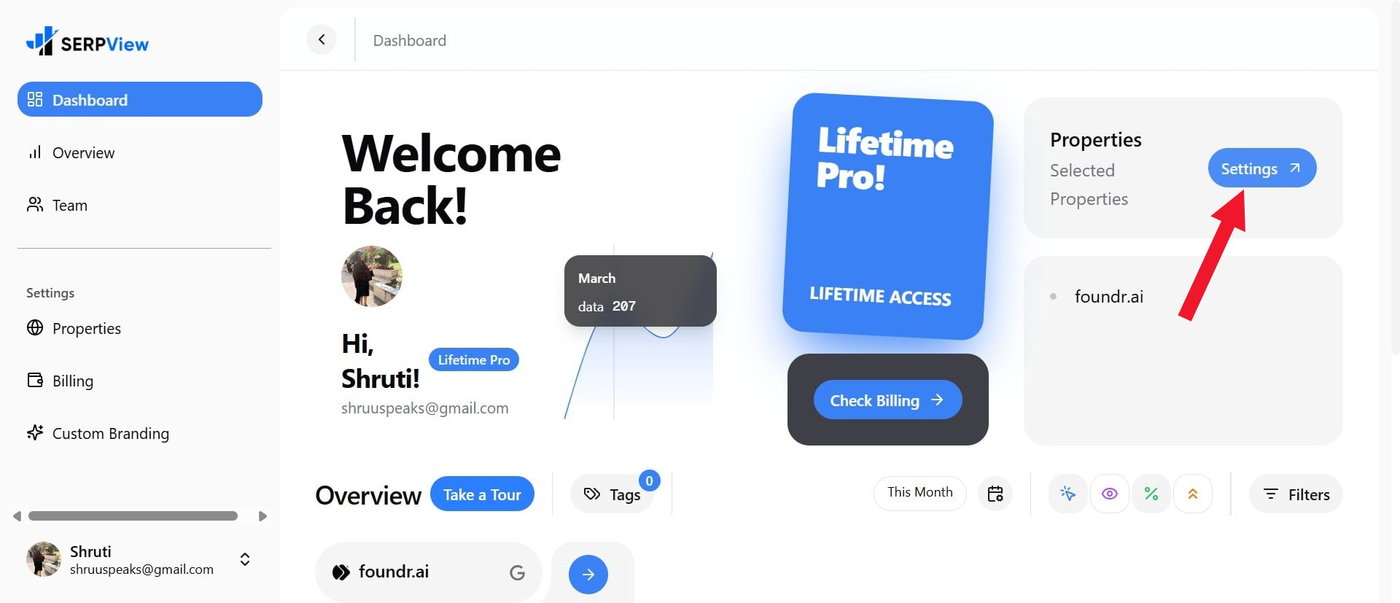
Go to the SERPView dashboard and click Settings in the Properties section at the right.
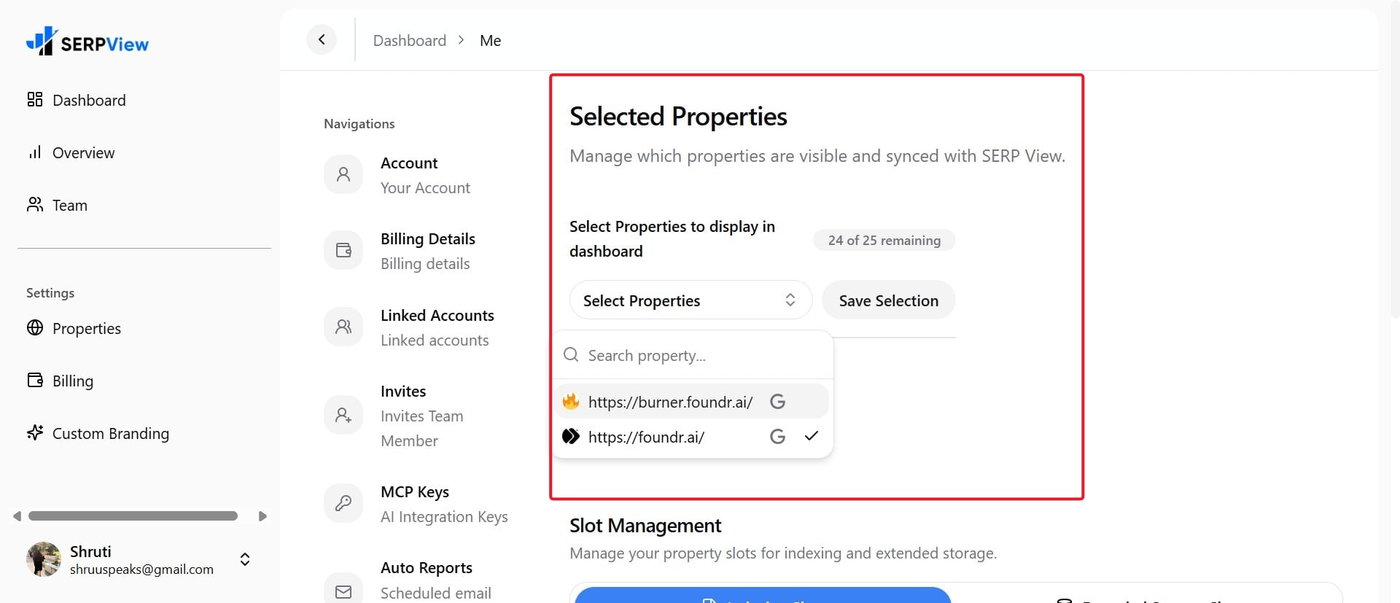
Click Select Properties, choose the properties you want to see in the combined portfolio, and click Save Selection.
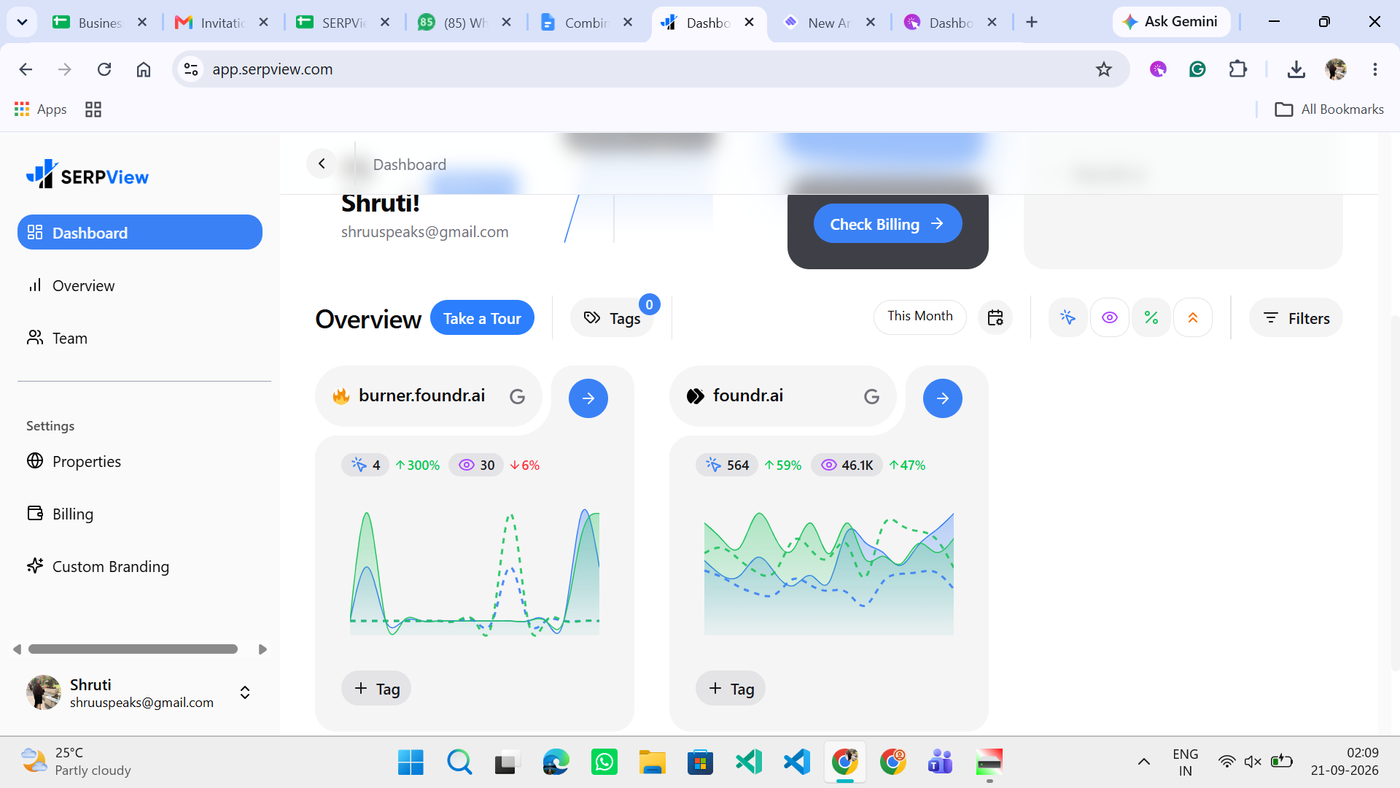
Go back to the Dashboard to view an overview of analytics for all selected properties in individual charts.
How To Monitor Combined Metrics In SERPView?
On the SERPView dashboard, click Tags < Manage.
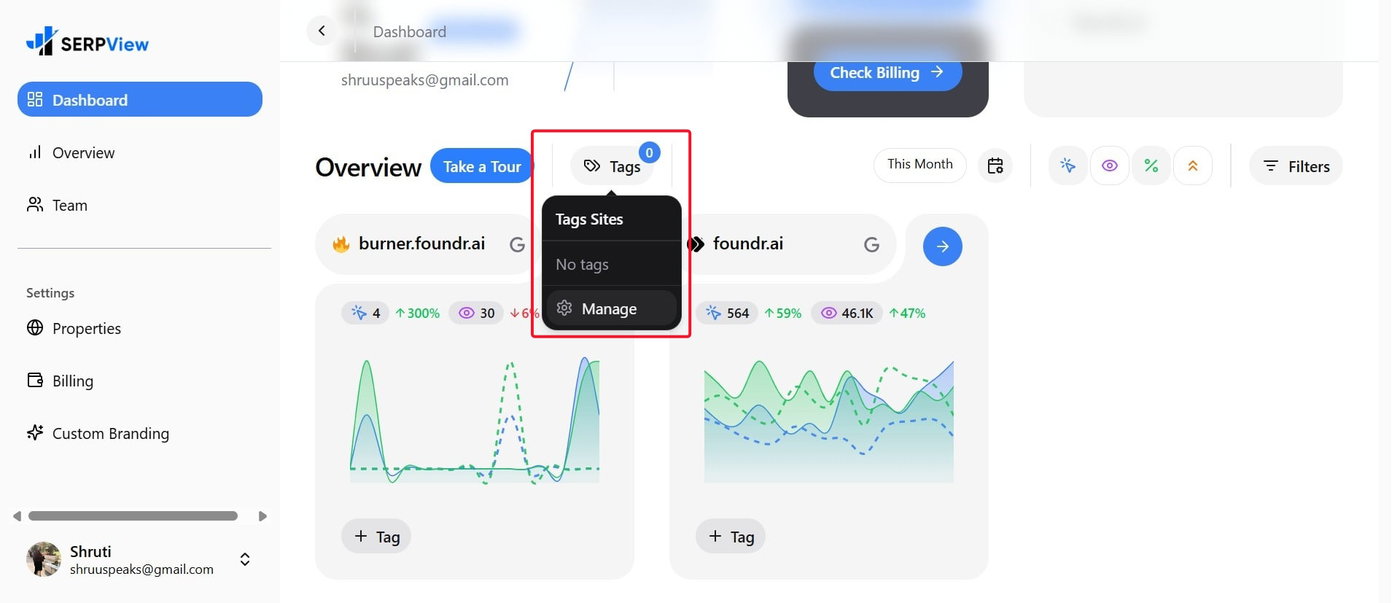
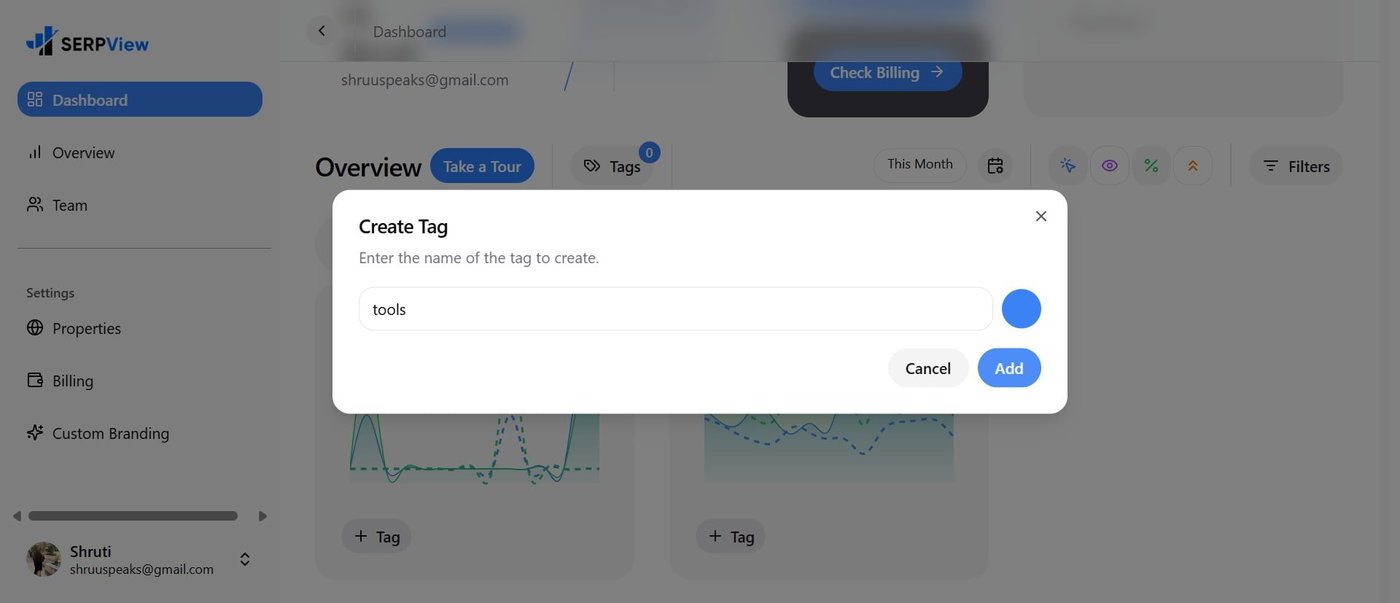
Click the Create Tag button, enter the Tag Name, and click the Add button.
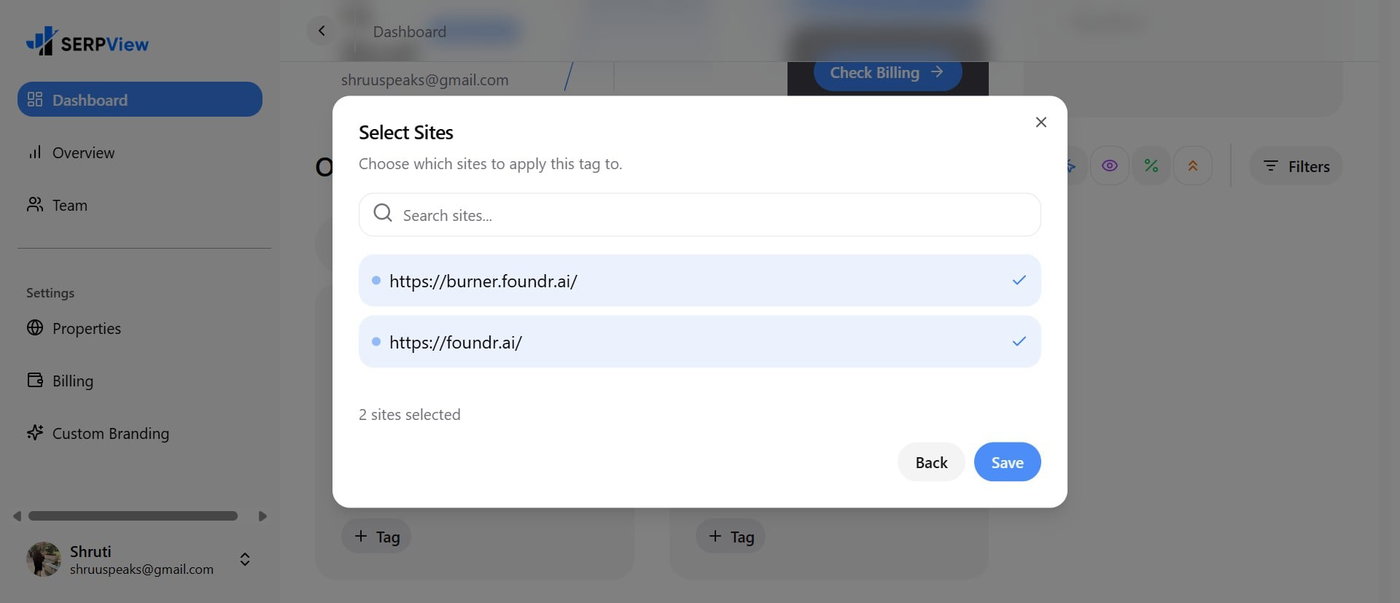
Choose the sites you want to analyze together under that tag, then click Save.
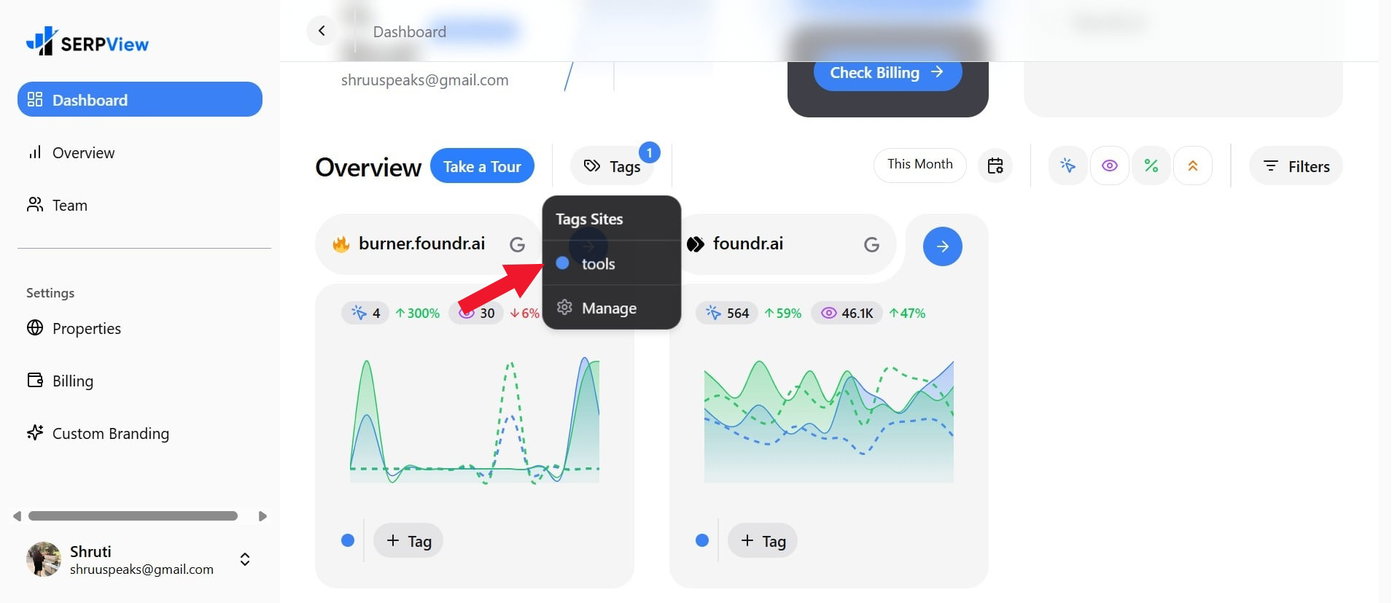
Go back and click the Tag again, then choose the Tag name whose site data you want to analyze.
Boom, you will now see the Combined Metrics of all the chosen sites under that tag.
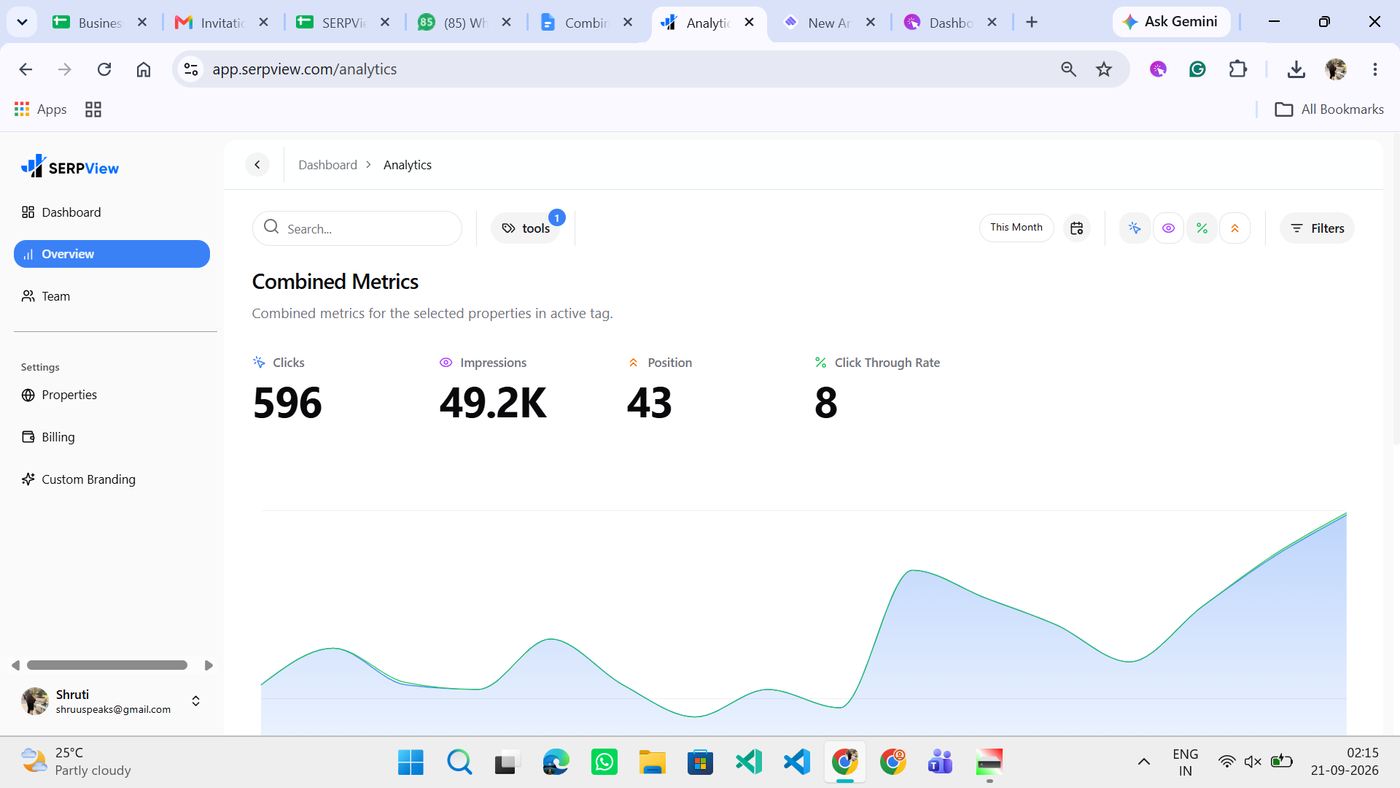
You can filter this data as needed, and below that, it lists the performance charts of sites under that tag individually. Similarly, you can create as many tags as you want based on your needs.
As of now, 25 properties can be monitored at once in SERPView on the premium plan. So, start saving time with the SERPView Combined Portfolio Metrics feature today!