
How to Run a Website SEO Audit Using SERPView?
A website SEO audit helps you identify technical issues that may affect how search engines crawl, index, and understand your website. Regularly auditing your website can help you find problems such as broken pages, incorrect canonical URLs, and missing meta descriptions.
SERPView's SEO Audit feature crawls your website to identify SEO issues and provides a site health score. You can audit up to 5,000 pages per audit and customize the crawl settings to focus on specific sections of your website.
How to Run an SEO Audit in SERPView?
To run an SEO audit based on Google Search Console data in SERPView, follow the steps given below:
Go to the SERPView dashboard of your preferred property.
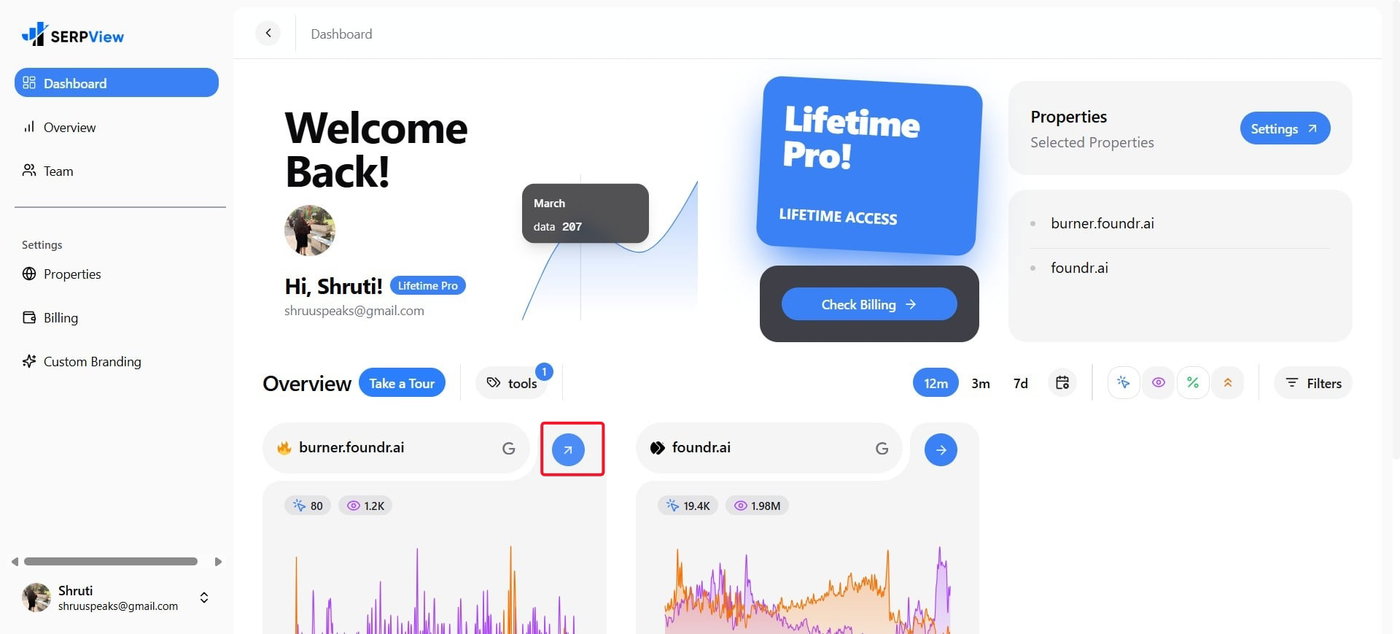
Click the Analytics menu and choose the SEO Audit option.
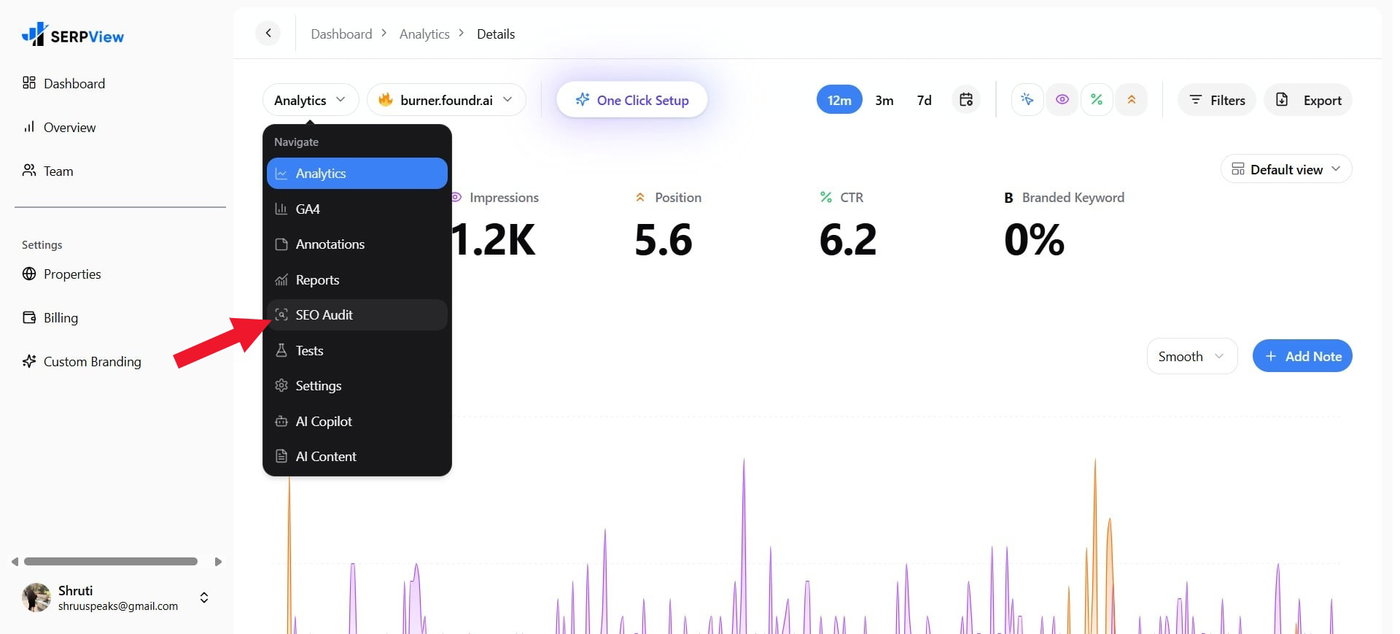
Click Run Audit to start the tool crawling your website.
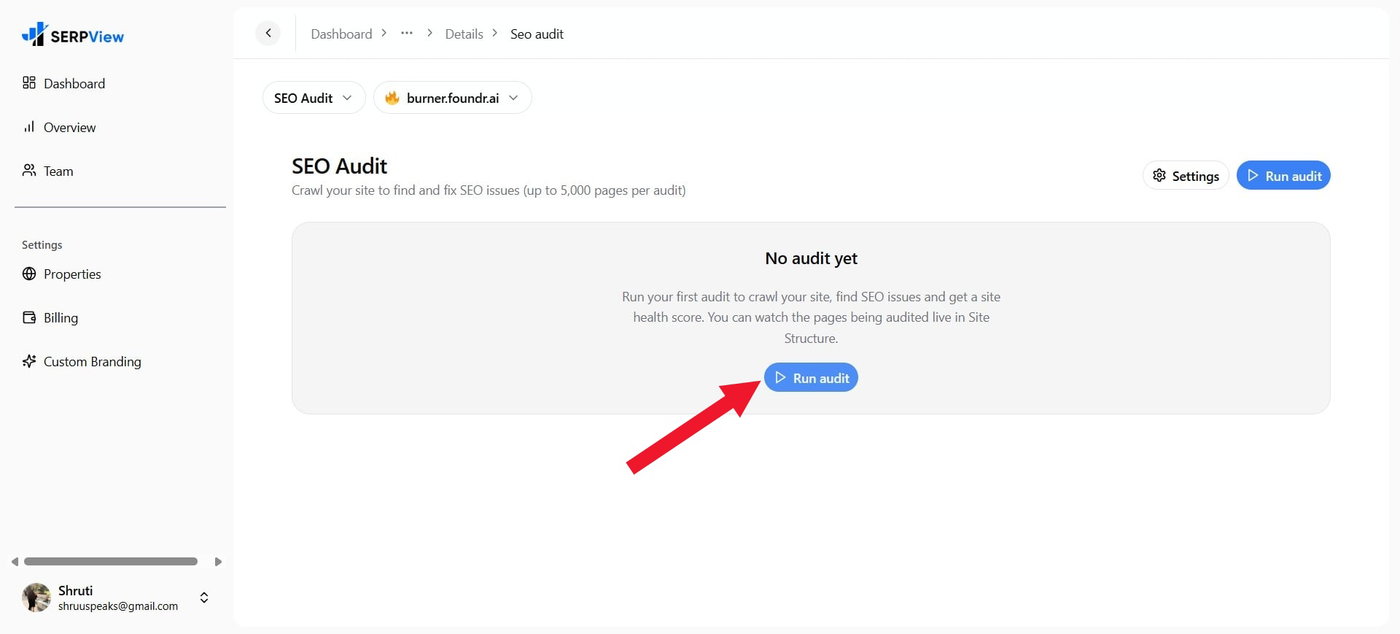
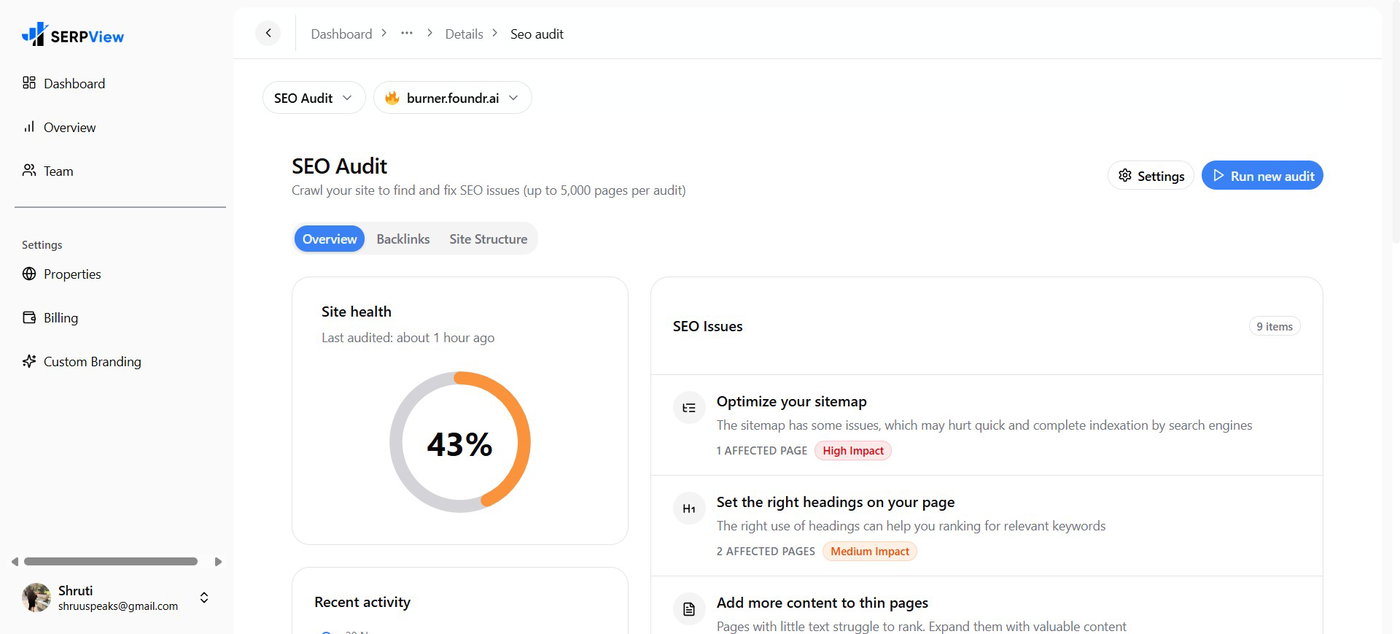
By default, SERPView will crawl all website pages to check the SEO issues specified in the audit settings. After the audit is completed, review the report to understand and optimize the site accordingly. This may take some time; you can also configure selected pages only via the audit settings. The process completes, and results are displayed so you can optimize accordingly.
How to Configure SEO Audit Settings?
SERPView enables you to customize your website audit through the Settings menu. Its available options enable you to control the crawl, manage pages, and choose which SEO checks should be performed during the audit.
1] Crawl Settings
Set up how SERPView can crawl your website.
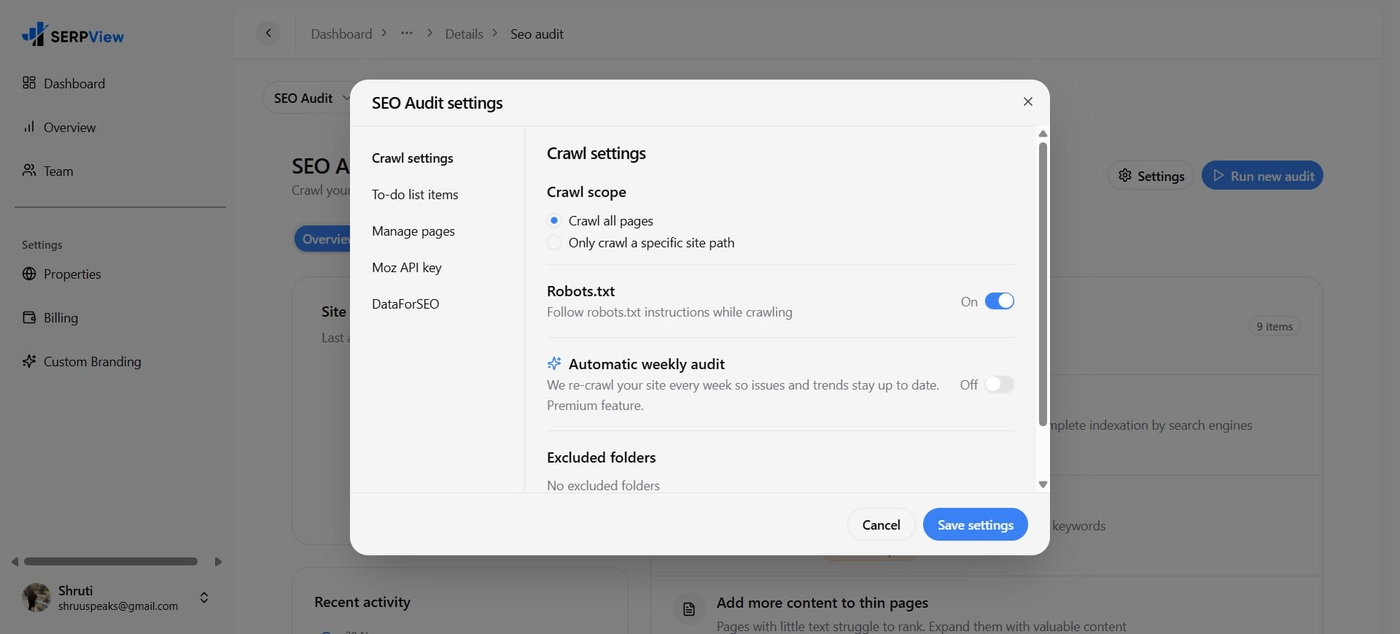
Crawl Scope: Here you can choose whether to crawl all website pages or restrict it to audit only for the specific site URL or path.
Robots.txt: Enable this option to follow your website's robots.txt instructions during the crawl.
Excluded folders: Add folders to this option that SERPView shouldn't include in its audit crawl.
Automatic Weekly Audit: Enable weekly crawls to ensure your website's SEO issues and trends are up to date.
2] To-do List Items
Select which SEO checks you want to include in your reports. You can enable them or disable them based on your requirements.
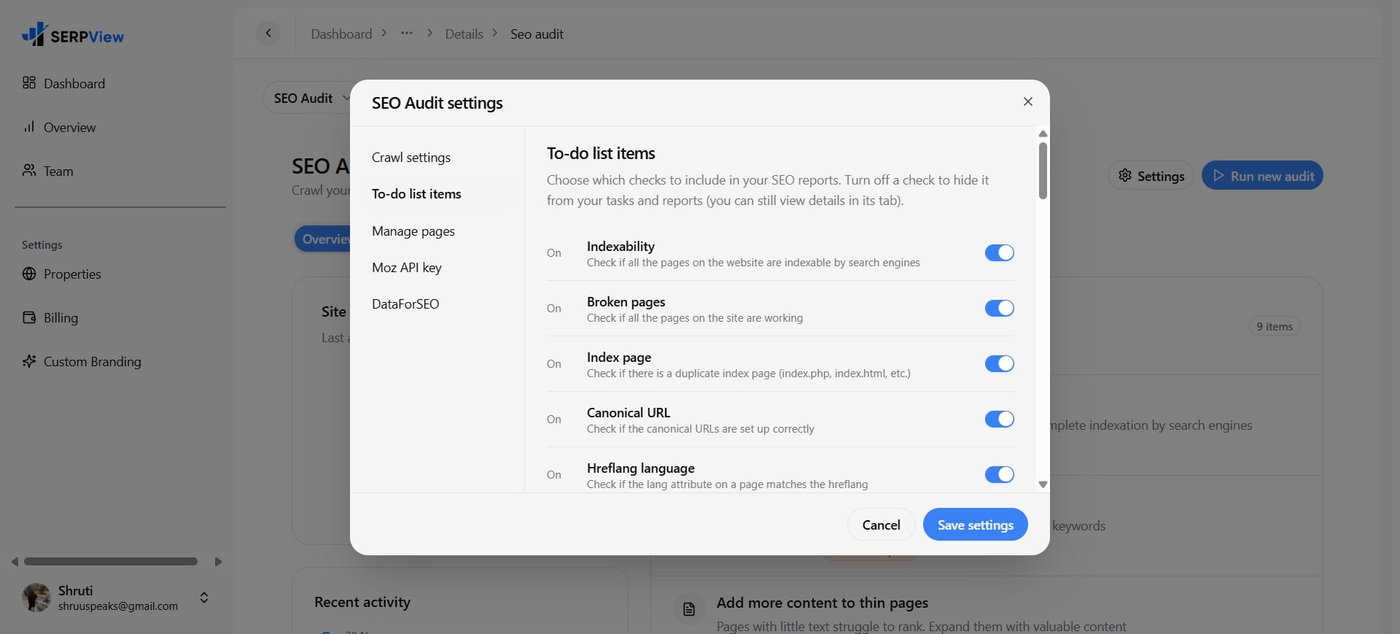
Some of the available checks include:
Indexability
Broken pages
Index page
Canonical URL
Hreflang language
Meta description
You can also view the details of disabled checks in their respective tabs. But they will still be hidden from your tasks and reports.
3] Manage Pages
You can use this section to control which individual URLs should be included in or excluded from your audit.
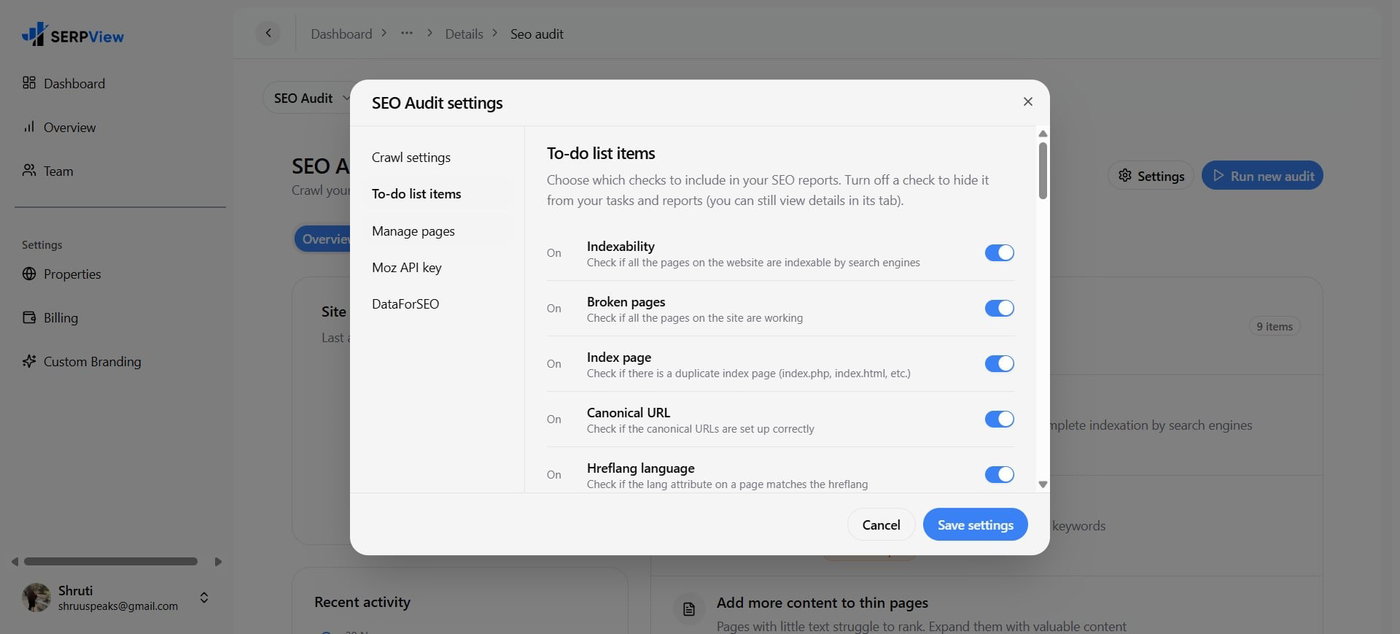
Manually added pages: Add specific URLs or page paths that you want to include in your audit.
Ignored pages: Add URLs that you want to exclude from the audit and reports.
4] API Integrations
SERPView enables you to configure external API credentials to access additional SEO data.
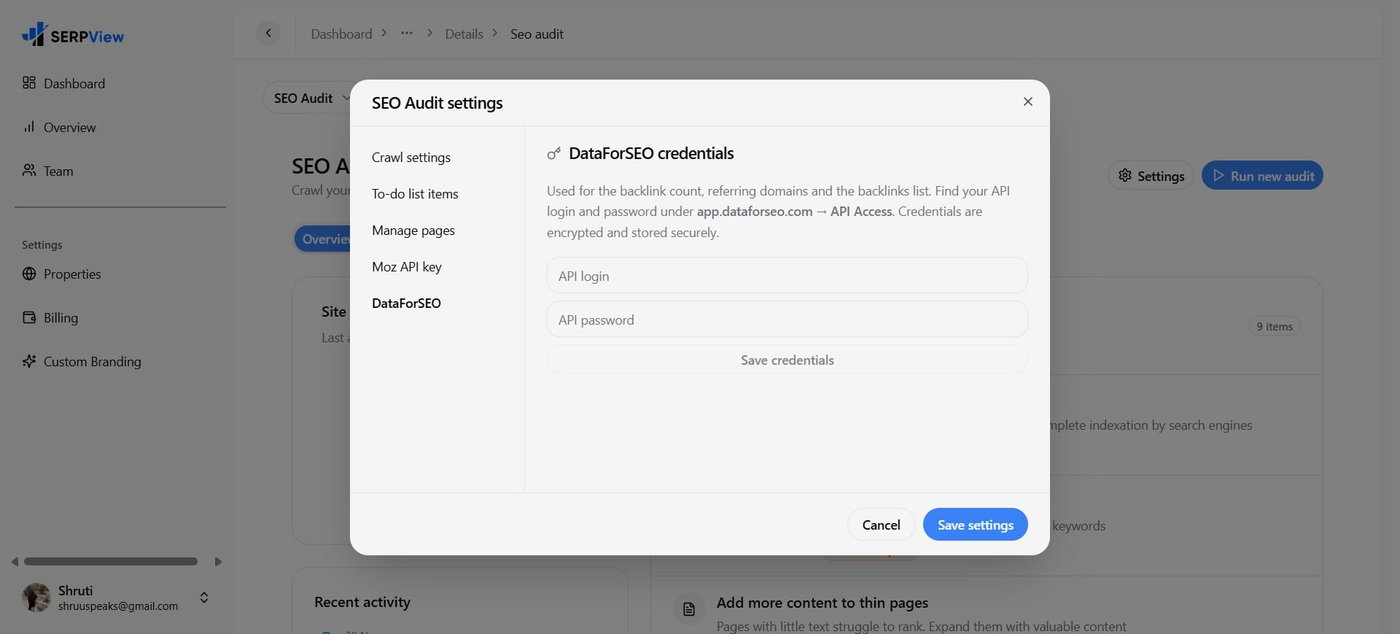
Moz API key: Set up your Moz API key for additional SEO data to be used in the audit.
DataForSEO: Enter your API login and password to view backlink counts, referring domains, and backlink lists.
Click Save Settings to apply your chosen changes from the next audit onwards.
How to Automate Your Website SEO Audit?
If you want to monitor your website frequently, enable Automatic Weekly Audit under Crawl Settings; it is a premium feature. SERPView will then recrawl your website every week. The latter will help you track SEO issues and changes without having to start each audit manually.
Conclusion
Use SERPView's SEO Audit feature to crawl your website, identify technical SEO issues, and review your site's health. Further customize the crawl settings and select the checks relevant to your website. Schedule weekly audits to maintain a consistent approach to technical SEO monitoring.
So what stops you? Try SERPView now, and also check out the one-click AI setup feature to skip hours of keyword research.